How to scan documents into searchable PDFs on your phone
Turn letters, forms and statements into clear PDFs you can find by any word inside them, without uploading anything. Free, step by step, on Android.
The problem
Paper piles up: letters, forms, contracts, statements. You want a clean PDF you can send, and you want to find it later by what it says, not by guessing a file name. And you would rather not upload private papers to an online service to get there.
In short: with Kopi Scan, tap Scan, add your pages, tap Save PDF. The text is read on your phone, so Search finds the document by any printed word. Sharing, saving and printing are free, with no watermark and no page limit.
What you need
- An Android phone, tablet or foldable on Android 7.0 or newer, with Kopi Scan installed.
- The paper document. Good light helps; a flat surface helps more.
- Nothing else: no account, no connection. Core scanning, text reading, search and saving work offline, even in Airplane Mode.
Step by step
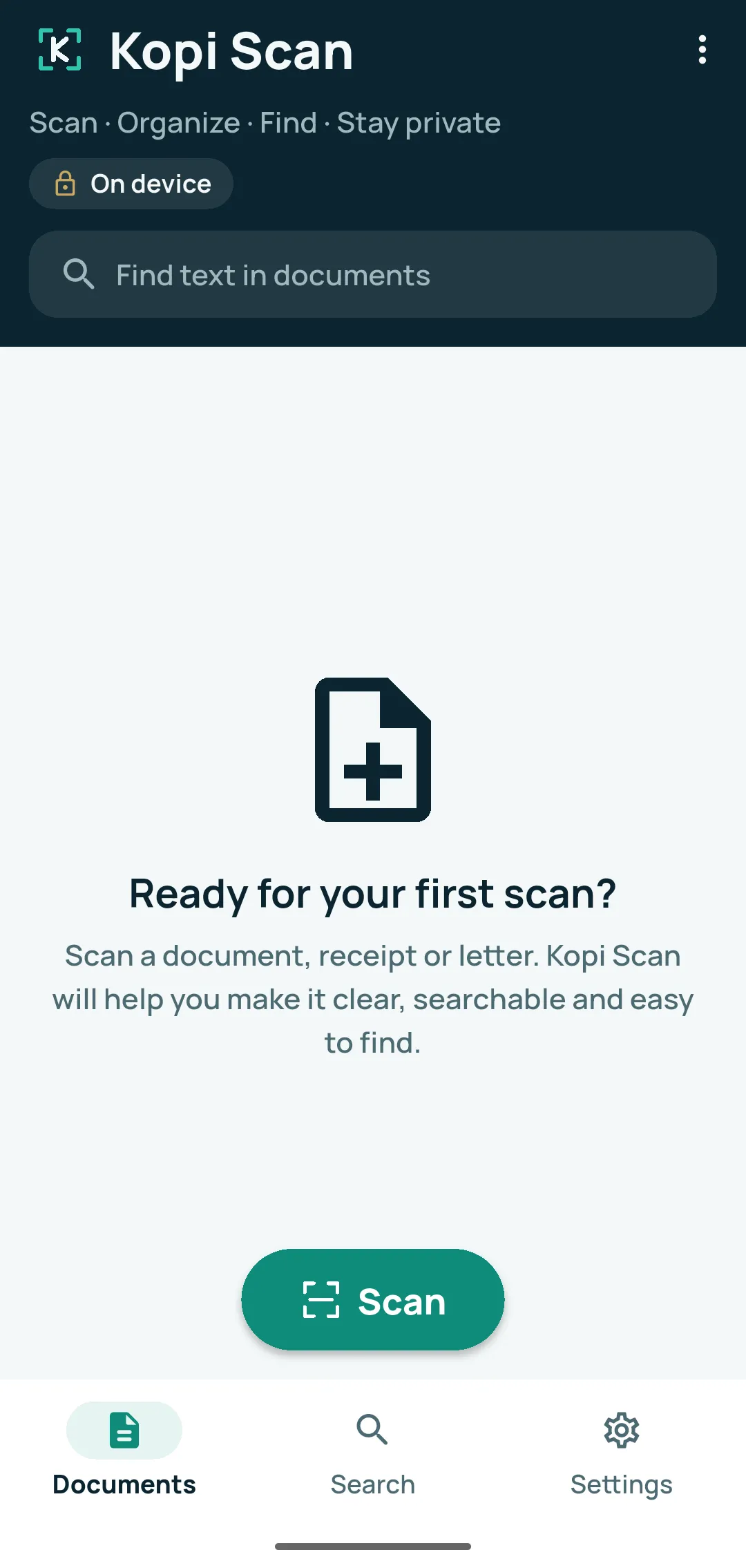
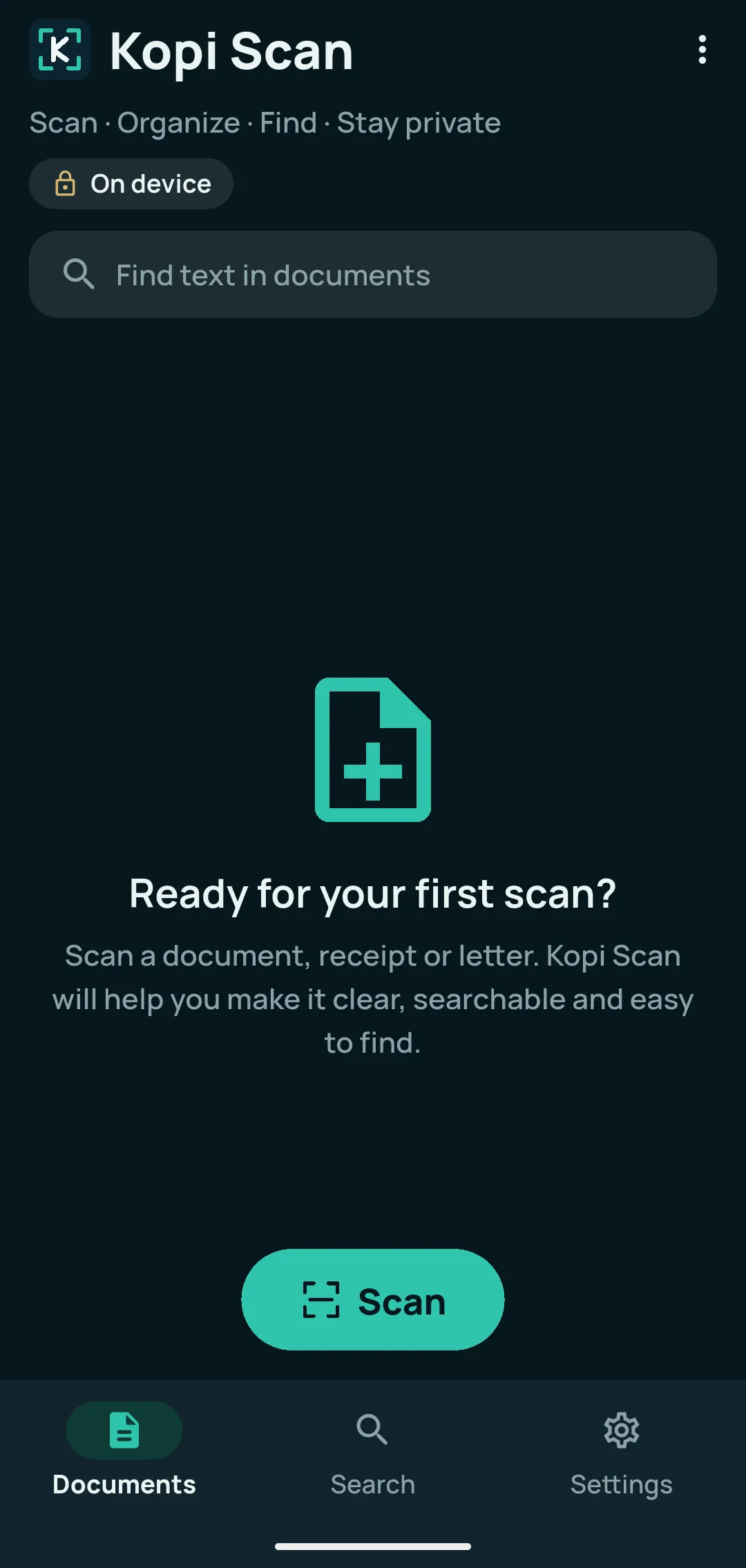
- Start a scan. Tap Scan, the teal button above the bottom bar.
- Phones with Google Play services: Google’s document scanner opens. It finds the page edges, then crops and straightens the page.
- Other phones: Kopi Scan’s own camera opens (“Fit the whole page in the frame”). Tap Take photo. On Adjust the page edges, drag the four corners to the corners of the page, choose a look if you like (Colour, Grey, Black & white, Photo), then tap Use this page (or Retake).
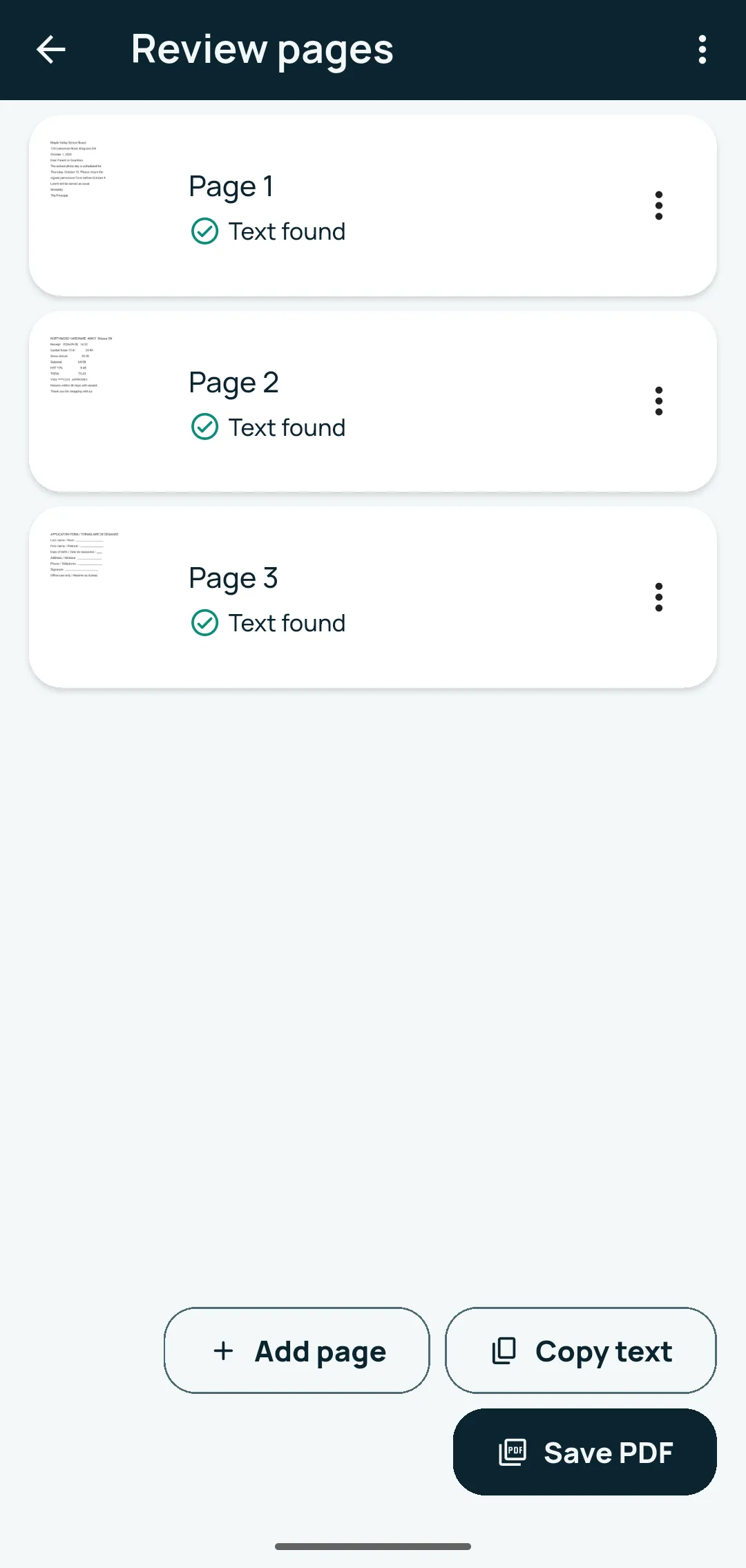
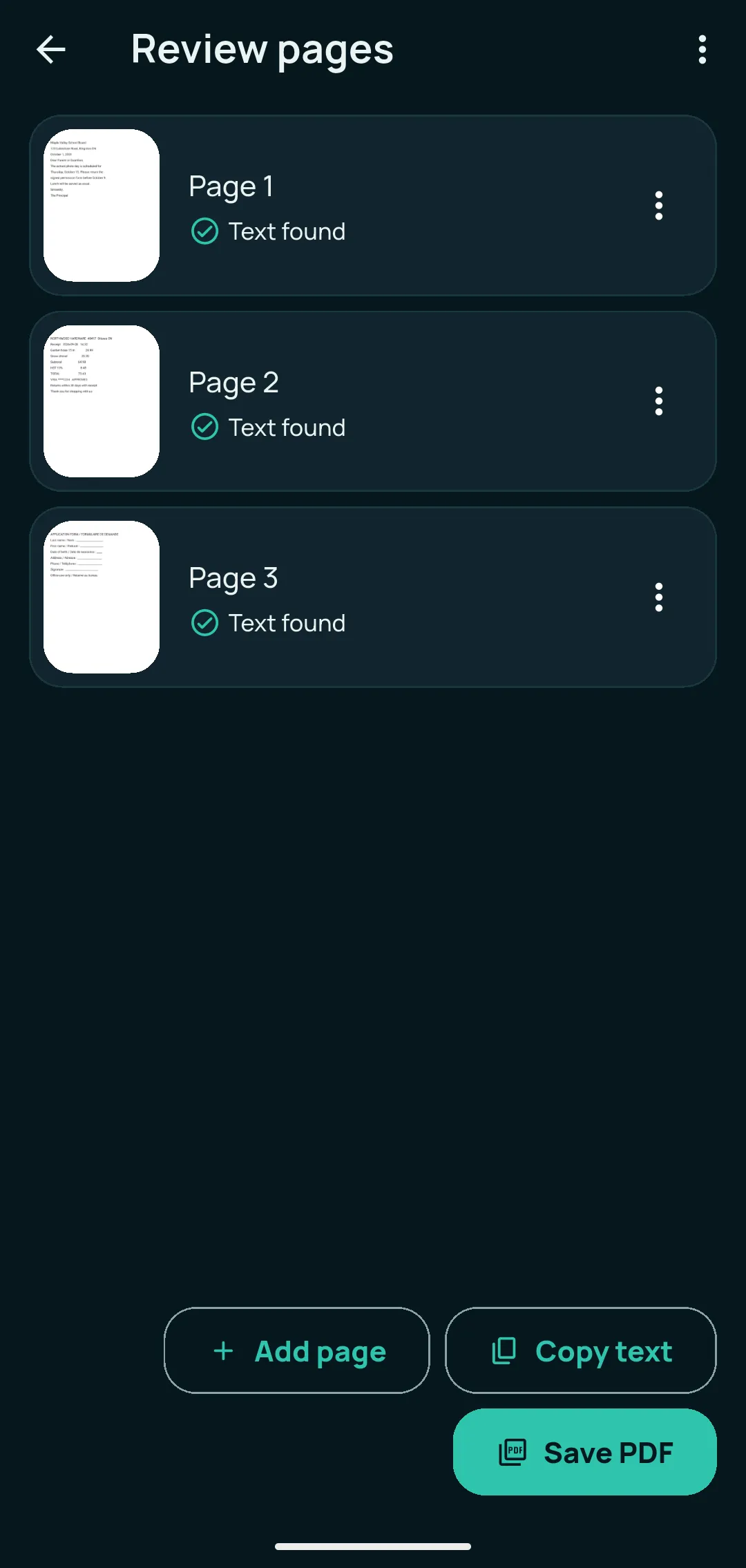
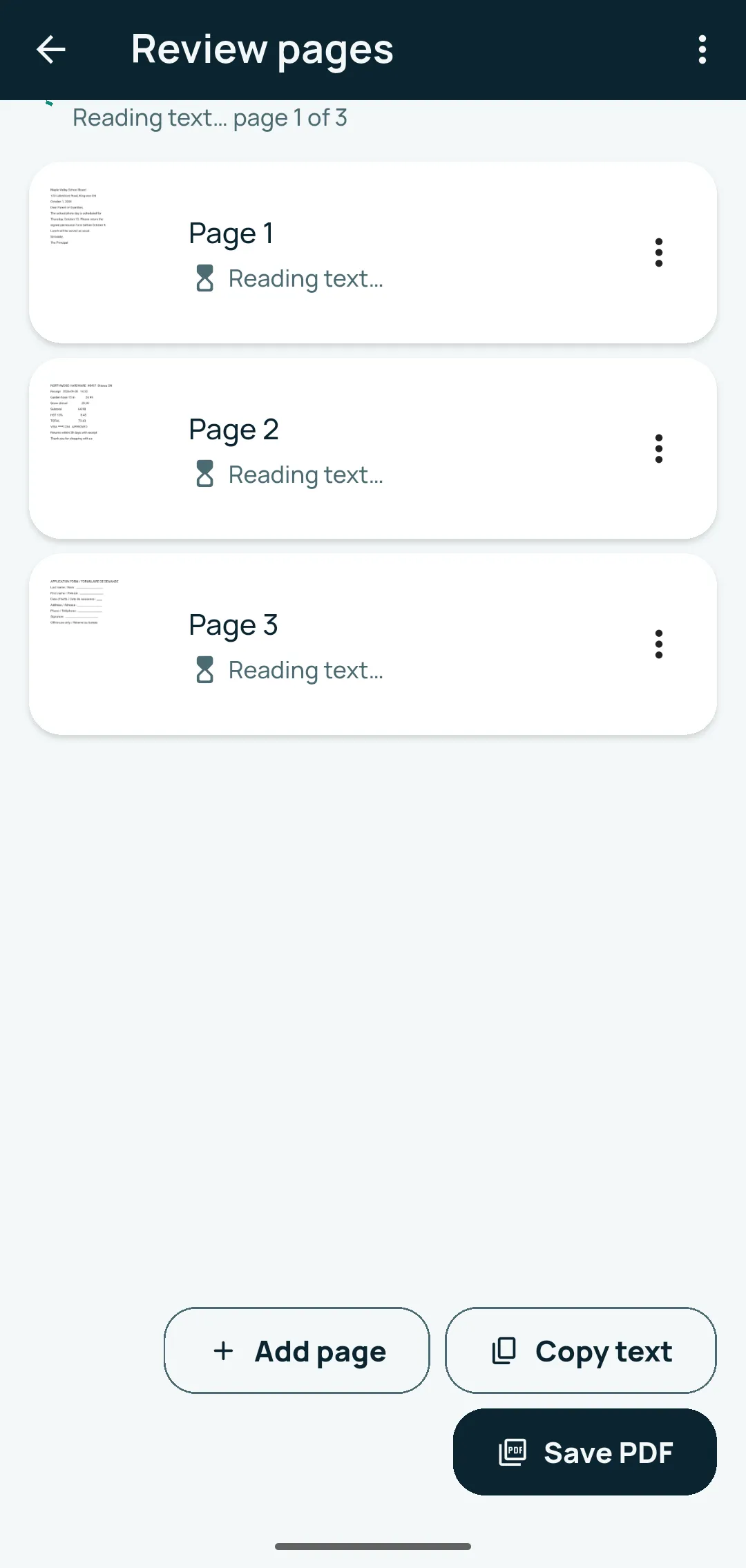
- Add more pages. You are now in Review pages. Tap Add page for each extra page. The app sets no page limit; your phone’s storage is the only limit.
- Fix the order. On a page, tap its ⋮ for Move up, Move down, Retake page, Put front and back on one page or Delete (tap Undo in the message if you change your mind). “Move up” doesn’t show on the first page, and “Move down” and “Put front and back on one page” don’t show on the last one.
- Card tip: scan the front, then the back; on the front page tap ⋮ › Put front and back on one page.
- To start over: the ⋮ at the top right of Review pages › Discard scan.
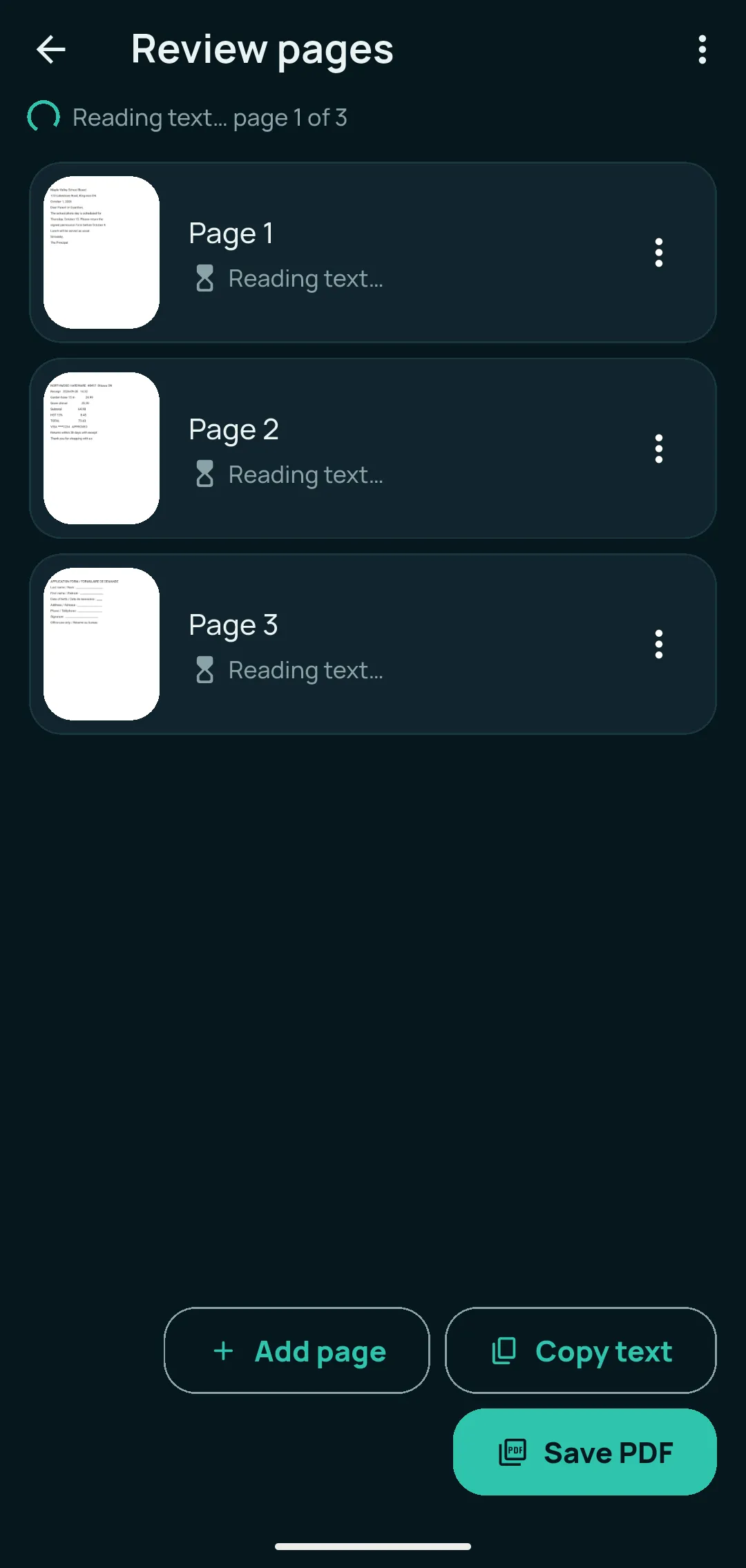
- Watch the text being read. The top of the screen shows “Reading text… page 1 of 3”; each page shows “Reading text…”, then “Text found”. The reading happens on your phone. Tap Copy text if you want all pages’ text on the clipboard right away.
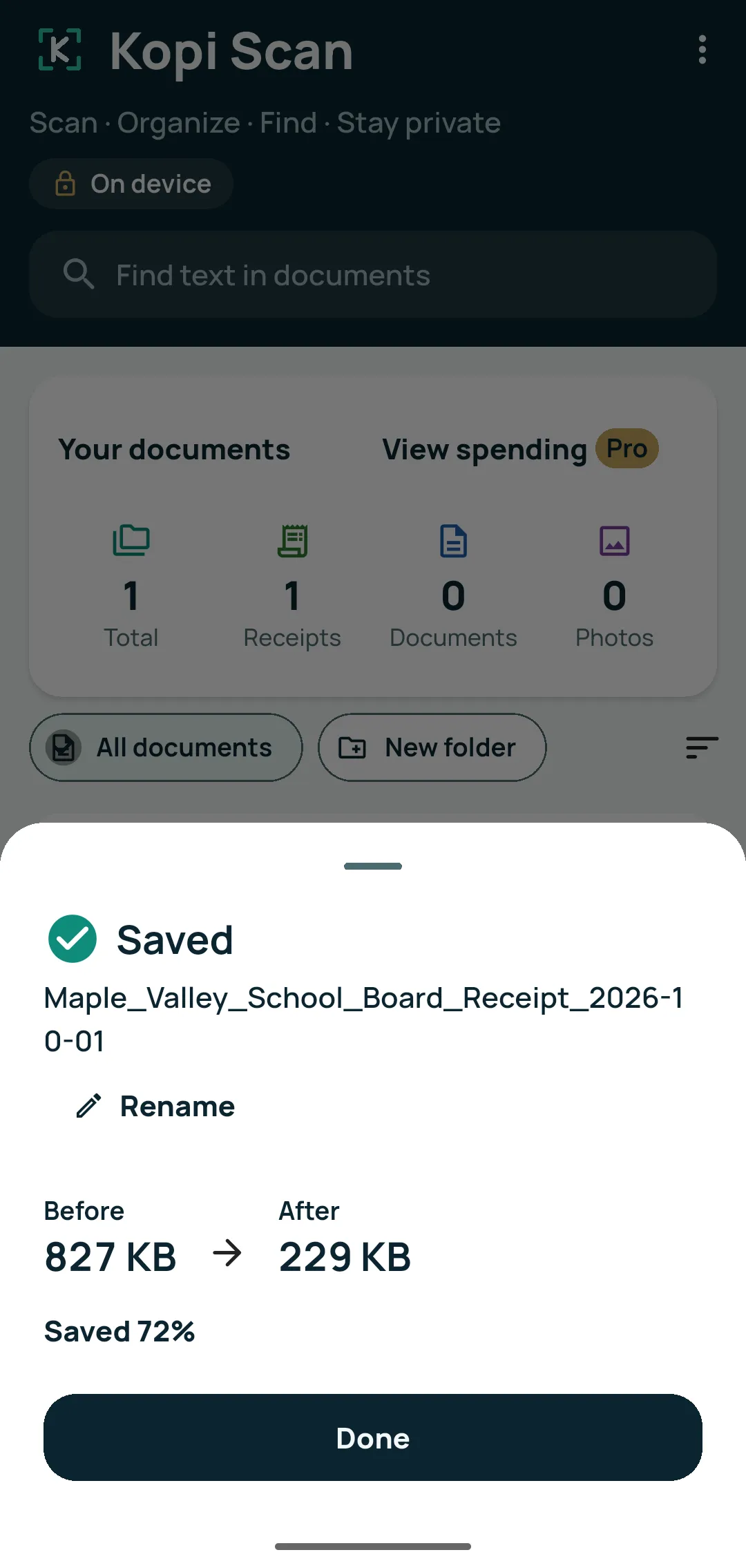
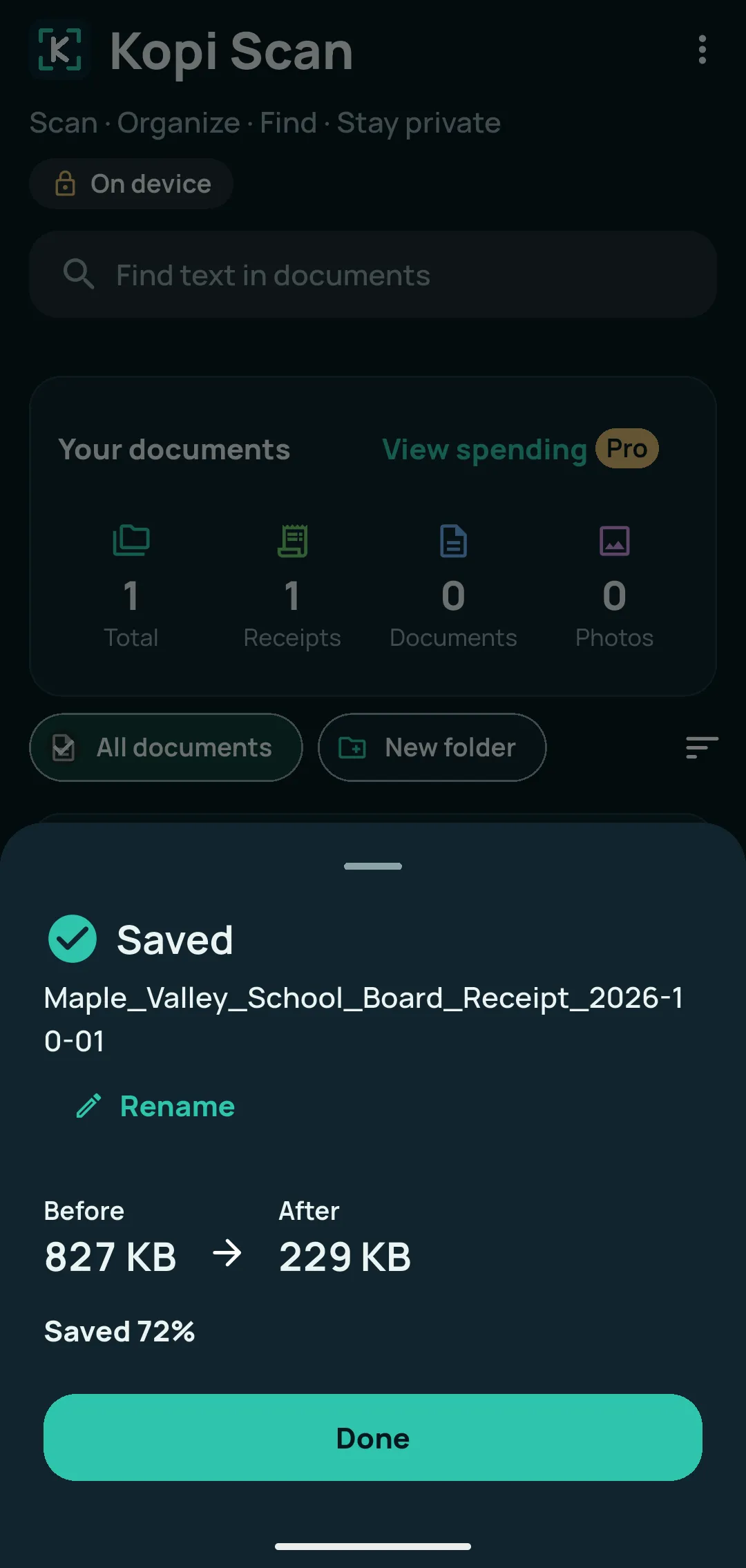
- Save. Tap Save PDF. The Saved sheet shows the suggested name and type (a receipt gets the type “Receipt”, for example), a Rename button, and the file size Before and After. Tap Done.
- Fix a page after saving (optional). Open the document, swipe to the page, then tap Crop, Enhance or Rotate under the page pictures. The Edit page screen has Auto-enhance, Light (Brightness, Contrast), Look (As scanned, Colour, Grey, Black & white, Photo), Rotate (Rotate left, Rotate right), Crop (Whole page, Apply crop) and Erase marks, a brush for stains and marks, not for hiding private information. Tap Save page.
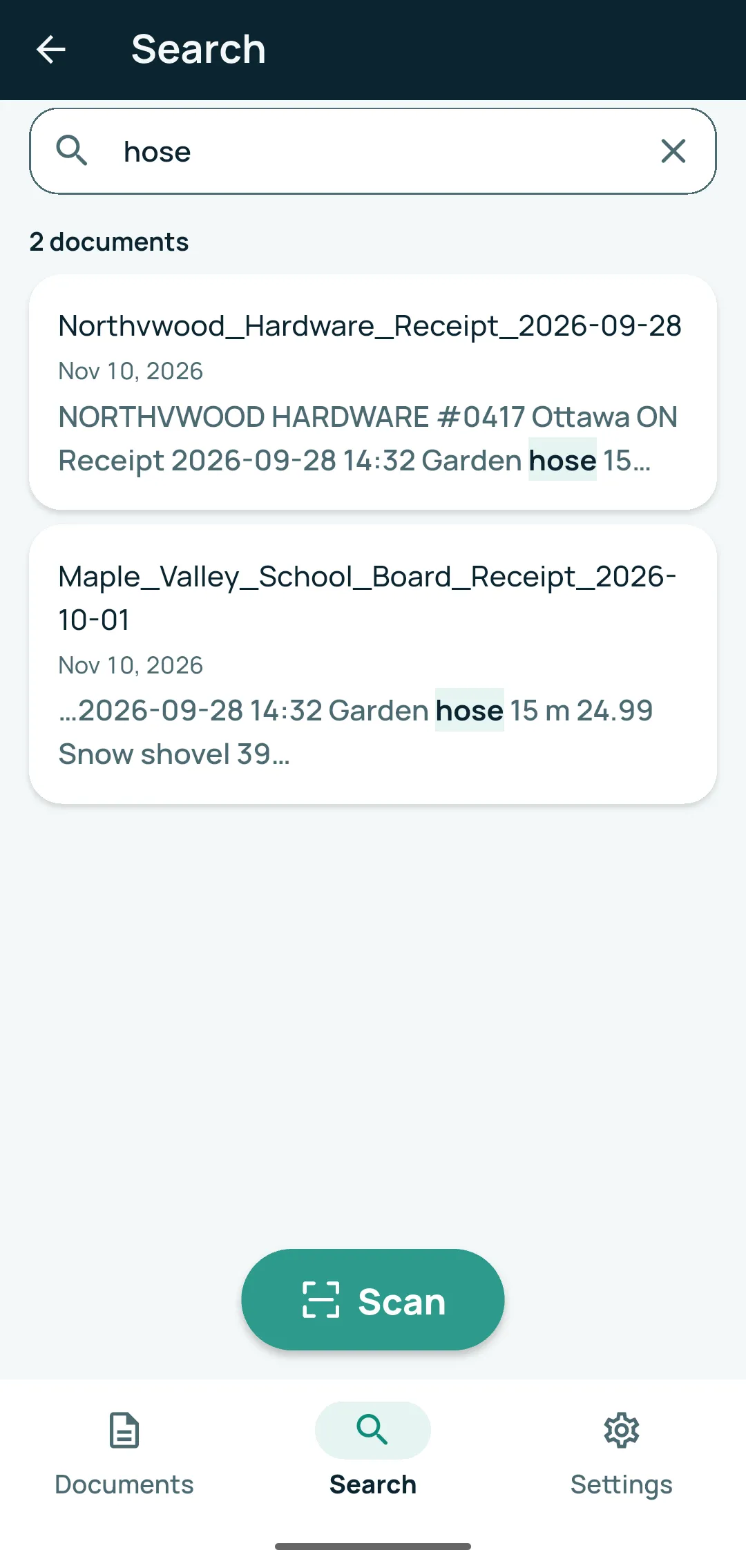
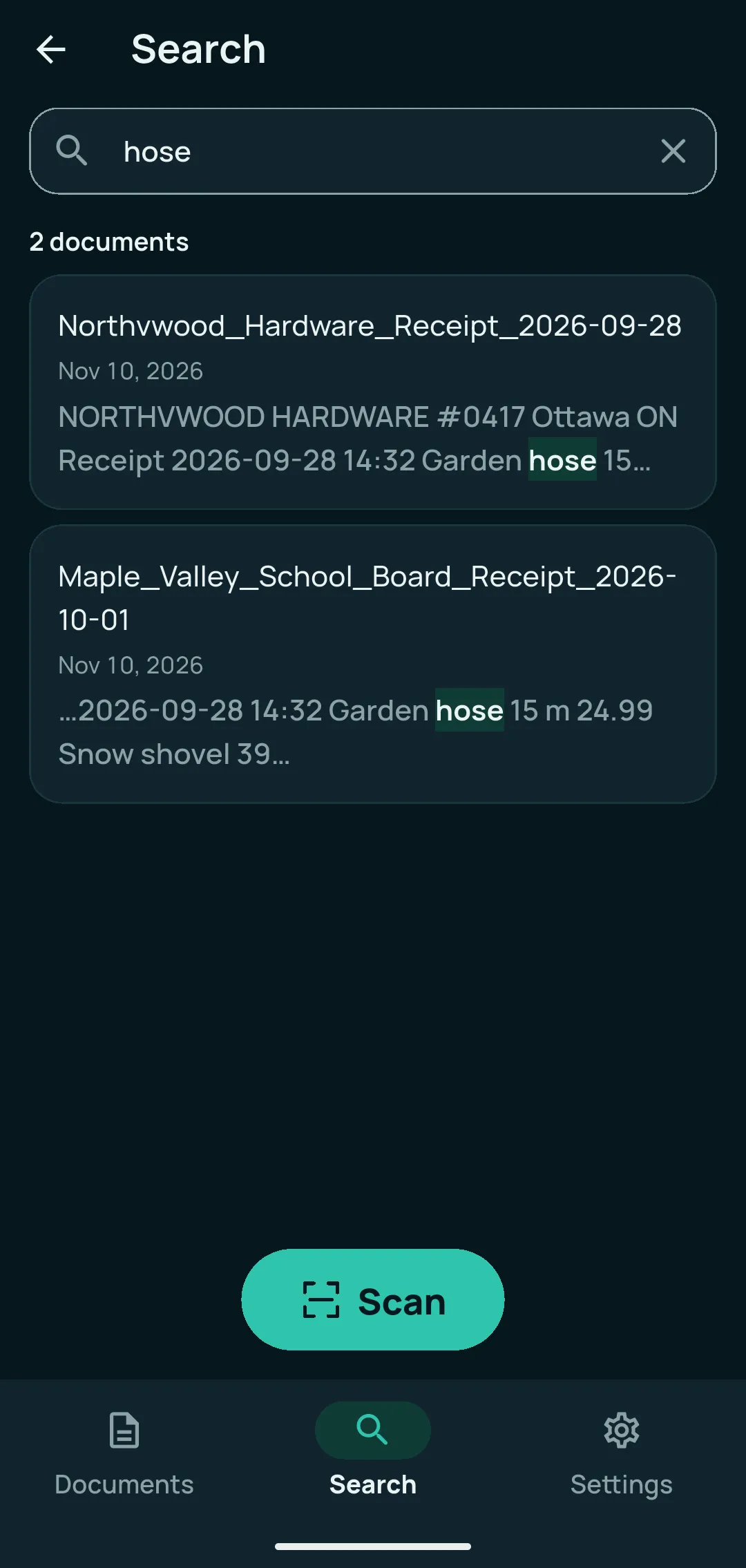
- Find it later. Tap Search in the bottom bar, or the “Find text in documents” box on Documents, and type any word printed in the document, or from its name or tags. Capitals and accents don’t matter.
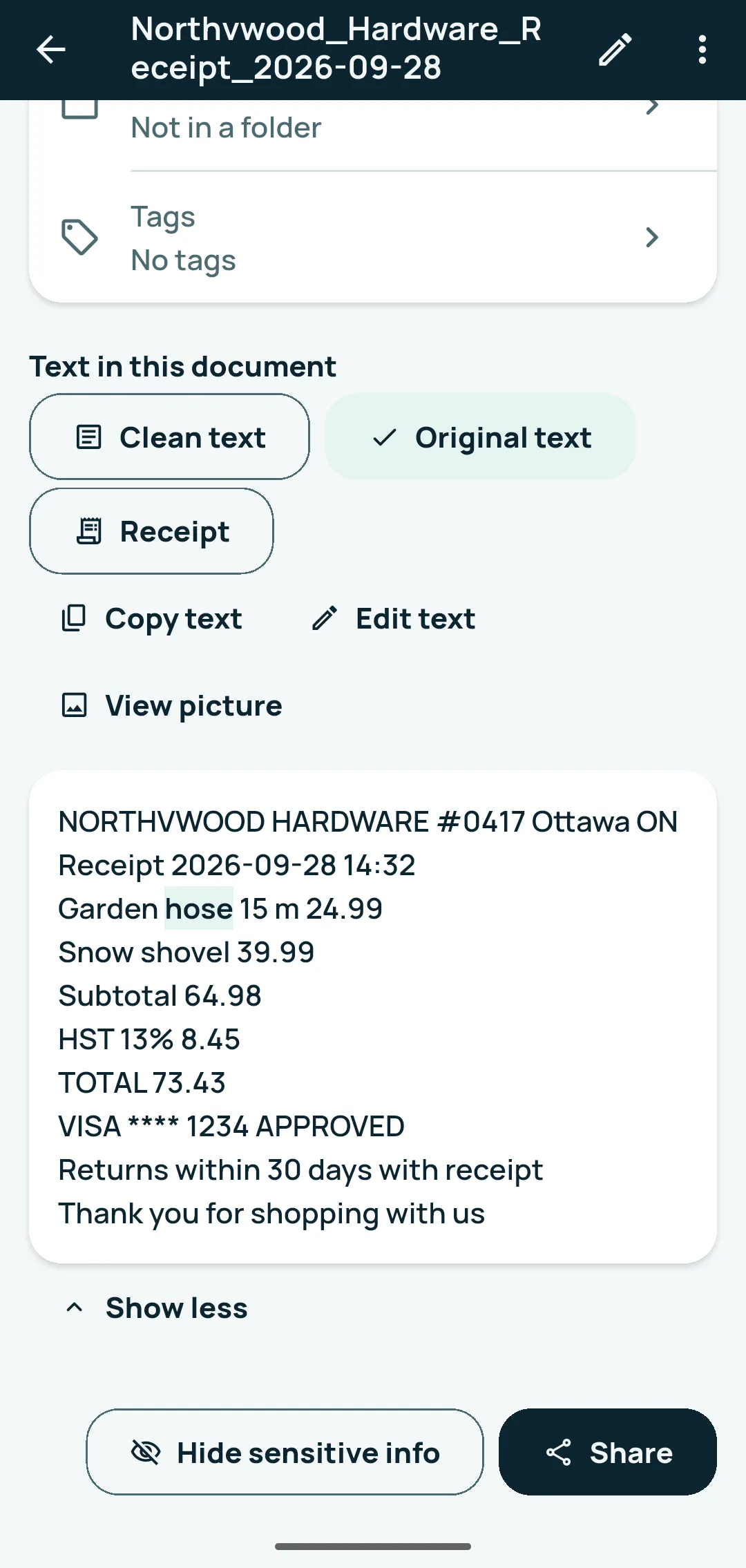
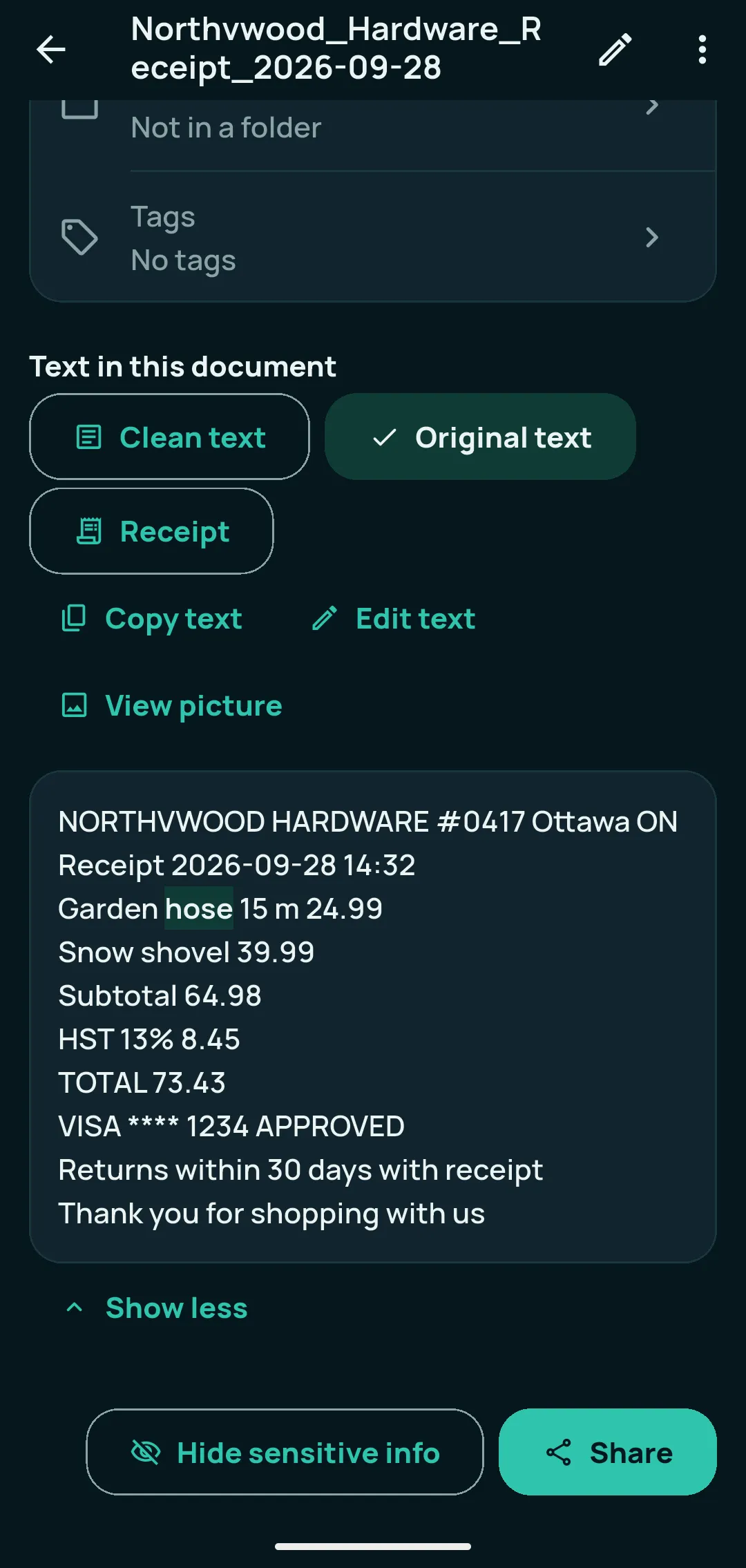
- Correct a misread word (optional). Open the document. Under “Text in this document”, tap Edit text (on a multi-page document, the Edit text of that page, or Edit › Edit text). Fix the word and tap Save text. Search and shared PDFs use your correction, and the page picture never changes. Undo my edits brings the original reading back.
- Share, save or print. Open the document and tap Share at the bottom right, or the document’s ⋮ › Save or print…. The Save, print or share sheet offers Save PDF to this phone, Print, Share as JPG pictures, Share as PNG pictures and Share text only. Shared PDFs carry invisible text, so other apps can search them too.
- Make files smaller (optional). In Settings › Documents and scanning › Document quality, choose Compact, Balanced (recommended) or High quality. Page size for new scans is there too (Original shape, Letter, A4 or Legal); for one saved document, use its ⋮ › Page size.
- Already have photos or PDFs? On Documents, tap the ⋮ at the top right › Import from gallery or Import PDF. Imported pages are read like scans, so every word becomes searchable. PDFs locked with a password can’t be imported.
With Kopi Scan Pro
Everything above is free. Kopi Scan Pro, an optional one-time upgrade, adds Split into two pages for book spreads (a page’s ⋮ in Review pages), Take out pages and Make a clean copy (the document’s ⋮), Share PDF with page numbers, Share PDF with a password and Share as a spreadsheet (in Save, print or share), and Combine into one document (long-press to select two or more documents, then ⋮).
Good to know
- Page editing is done on a saved document, not in Review pages: review the order first, save, then crop, enhance or rotate a page.
- Text reading covers printed text in English, French and other languages written in the Latin alphabet. Handwriting and other alphabets (for example Arabic or Chinese) are not read by the free text reader. Reading from a photo isn’t always perfect: check important words, and use Edit text when needed.
- Google’s scanner needs Google Play services and at least 1.7 GB of memory, and Google Play services may download it once while you are online. Automatic capture and shadow removal belong to Google’s scanner, not to Kopi Scan, so don’t expect them with Kopi Scan’s own camera.
- File sizes vary. The before/after figures in the Saved sheet are for that document only; there is no fixed reduction.
- Nothing is uploaded by Kopi Scan. On Android, Kopi Scan has no internet permission. Your documents stay on your device unless you choose to share, export or back them up.
Related questions
Can I scan multiple pages?
Yes. Add as many pages as you need into one PDF — the app sets no page limit; your phone’s storage is the only limit. Before you save, you can reorder, retake or delete pages, and you can add pages later.
Can I import existing PDFs?
Yes. On Documents, tap ⋮ (More options), then Import PDF. Kopi Scan reads the text of the pages so every word becomes searchable. PDFs locked with a password can’t be imported: remove the password in another app first.
Can I search inside scanned documents?
Yes. Kopi Scan reads the text on every page on your phone, so you can find a document by any word printed inside it; capitals and accents don’t matter. Search is free.
Which languages can Kopi Scan read?
Kopi Scan reads printed English, French and other languages written in the Latin alphabet. Other alphabets, such as Arabic or Chinese, are not read, and handwriting is not read by the free text reader.
Does Kopi Scan add a watermark?
No. Your PDFs have no watermark, whether you use the free features or Kopi Scan Pro.
What if my phone doesn’t have Google Play services?
Kopi Scan still works. When Google’s document scanner isn’t available, Kopi Scan uses its own camera: take the photo, then drag the corners to the page. Everything else works the same.
Does it work offline?
Core scanning, text reading, search and saving work offline, even in Airplane Mode; when you’re offline, the app shows “Offline — scanning and your documents still work”. Buying Pro and Google’s scanner module need a connection the first time.
Related
How to organize receipts and track expenses on your phone
Keep every receipt, see the shop, date and items at a glance, and get totals and a spreadsheet when you need them, on your Android phone. Free steps first, then Pro.
How to scan documents privately, without cloud uploads
Scan IDs, medical forms and statements offline, keep them encrypted on your phone, hide sensitive details before sharing, and keep a backup only you can open.
Try it on your own documents
Core features are free: no page limit, no watermark, no account.
For Android 7.0 or newer.